White Rose Romantic AI Video Editing Prompt for Flow AI 2026
ByRutik Soni
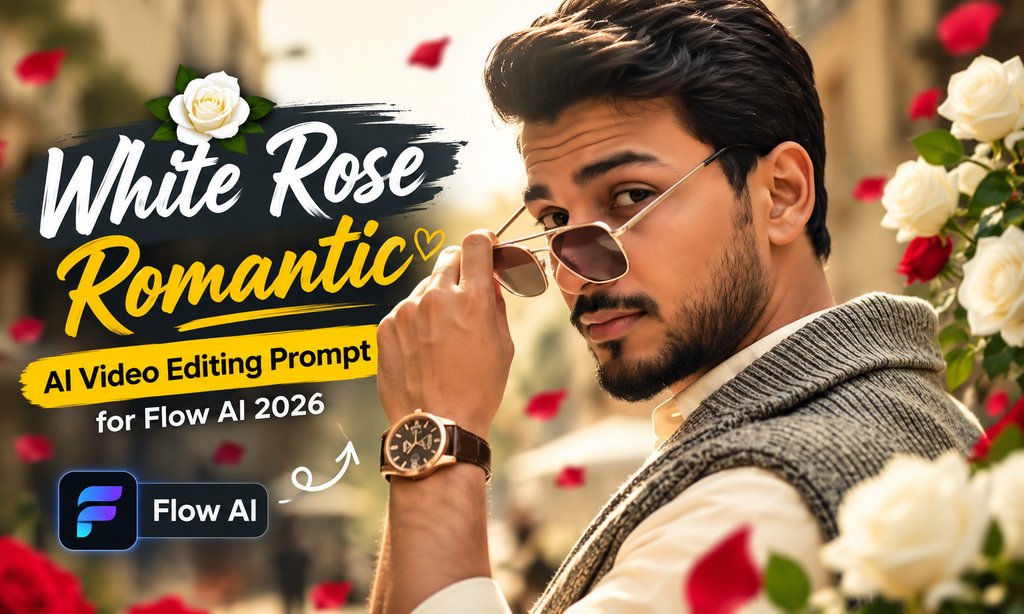
Want to create a stylish, romantic cinematic video using your own photo? The White Rose Romantic AI Video Editing Prompt for Flow AI helps you turn a simple reference photo into a professional-looking fashion video with a beautiful white rose, vintage café streets, and warm cinematic lighting.
This concept is designed around a seven-scene visual story. It starts with a stylish walking shot, moves into elegant white rose moments, and finishes with a cinematic café-street sequence. The same character, outfit, and overall visual style are maintained throughout the prompt. Visit Editing Prompts to get images prompts which is trending in Instagram and for videos check Templates.
What Is a White Rose Romantic AI Video Editing Prompt?
A White Rose Romantic AI Video Editing Prompt is a detailed text instruction that tells an AI video generator how to create a romantic, cinematic fashion video using a reference photo.
Instead of recording different clips with a camera, you upload your photo and describe the scenes, clothing, location, lighting, and movements you want. Flow AI uses these instructions to generate a video based on the capabilities of the selected model. Also check: Cinematic Eyes View Prompt 2026 & Viral Tenu Koi Penda Na Fark Sohneya Template.
The white rose is the main visual element in this concept. It adds a soft romantic touch while the vintage café, classic outfit, sunglasses, and warm lighting create a stylish fashion-film look.
Best Prompt for White Rose Romantic AI Video
Here is the complete prompt for creating your own white rose romantic fashion video. Upload a clear reference photo and use the prompt with a compatible Flow AI video-generation workflow.
AI Image Prompt
Use the uploaded reference photo for the man’s face, hairstyle, skin tone, body build and height. Keep identity exactly same as reference photo — no alteration to face, body, or hairstyle in any scene. Keep his skin natural, clean, and clear exactly as shown in the reference photo — no artificial smoothing, no plastic look, no added blemishes.
Keep the person’s body proportions natural and realistic, matching the exact build shown in the reference photo — do not add extra muscle, height, or bulk. This must work accurately for any person of any age or body type who uploads their own reference photo — the generated face, skin, and body must always match the uploaded photo exactly, never a generic or different look.
Outfit (same throughout, do not change): a cream/ivory button-down shirt with a small embroidered polo logo, a grey knit cardigan draped over the shoulders, rust-brown wide-leg trousers, black pointed leather boots, a rose-gold wristwatch, and stylish sunglasses.
Location (same throughout all 7 scenes, do not change): a charming old-world street café with rustic weathered stone walls, elderly patrons seated at nearby tables, hexagonal-tiled outdoor pavement, a lively street atmosphere, and — for one indoor scene — a rustic tea-stall with an open flame and metal kettle.
Color grade: rich, full, natural warm cinematic color grading built directly into the scene — realistic natural colors, warm daylight and firelight tones, cinematic contrast, never faded, never black and white, never desaturated.
Create 7 cinematic scenes, same outfit and same locations throughout:
Scene 1: Close-up shot — his feet and legs in black pointed boots and rust-brown trousers walking 7 to 8 natural steps along the hexagonal-tiled pavement, passing near a rustic wooden bench, natural daylight.
Scene 2: Close-up torso shot — he holds a single white rose delicately in one hand at chest height, no sunglasses yet, an elderly patron seated at a table softly blurred behind him inside the rustic café.
Scene 3: Close-up over-the-shoulder shot — he removes his sunglasses with one hand, glancing back toward the camera, bright sunlit background, the rose-gold watch visible on his wrist.
Scene 4: Close-up shot — sunglasses now on, he gently holds the white rose up to his face and smells it, weathered stone café wall and blurred patrons behind him.
Scene 5: Close-up shot — he tilts his head back with sunglasses reflecting the light, calm relaxed confident pose, same weathered stone wall and café atmosphere behind him.
Scene 6: Medium shot — indoors, he pours tea from a traditional metal kettle over an open flame into a small cup and saucer, sunglasses on, the white rose tucked behind his ear, warm firelight glowing on his face, rustic tea-stall setting.
Scene 7: Final medium shot — back outdoors on the bright sunlit street, he walks forward holding the white rose near his chest, head lowered thoughtfully then lifting to look at the camera, café tables and passersby softly blurred behind him, cinematic slow zoom-out to finish.
Format: 16:9 widescreen, 4K/8K ultra-realistic quality, continuous fashion-editorial story flow from Scene 1 to Scene 7, no scene skipped, smooth cinematic transitions between poses.
Watermark: small semi-transparent text “promptseen” fixed in the same bottom corner throughout, minimal white or light-colored font, low opacity, non-intrusive, appearing only once at any given time.
How to Create a White Rose Romantic AI Video in Flow AI
Step 1: Open Flow AI – Visit Google Flow and select an available AI video-generation workflow.
Step 2: Upload Your Reference Photo – Choose a clear, high-quality photo to help maintain your facial features and appearance.
Step 3: Copy the White Rose Prompt – Copy the complete White Rose Romantic AI Video Prompt and paste it into the prompt box.
Step 4: Set the Video Style – Choose a 9:16 aspect ratio for Instagram Reels or YouTube Shorts, if supported.
Step 5: Generate Your AI Video – Generate the video or create each scene separately using the same reference photo.
Step 6: Review the Results – Check your face, outfit, white rose, movements, and transitions. Regenerate any scenes that look unnatural.
Step 7: Edit and Export – Arrange the clips in the correct order, add romantic background music, and export your final video.
Best Tips for Realistic White Rose AI Videos
A detailed prompt can help guide the video, but the quality of your reference photo and the AI model also affect the final result.
Use a sharp, well-lit reference photo with clearly visible facial features.
Keep the same reference image for all scenes to help maintain identity.
Describe one main action per scene to avoid confusing movements.
Keep the white rose consistent in size, color, and appearance.
Use warm daylight outdoors and soft firelight indoors.
Avoid adding too many camera movements in a single scene.
Generate short clips first if the AI struggles with the full seven-scene prompt.
Review every clip before combining them into a final Reel.
Common Problems and How to Fix Them
Common issue
How to fix it
Face changes between scenes
Reuse the same reference photo and identity instructions.
Outfit changes unexpectedly
Repeat the complete outfit description in each scene prompt.
Rose disappears
Specify that the white rose remains visible whenever required.
Hands look distorted
Simplify hand actions and regenerate the affected clip.
Video feels disconnected
Generate scenes in order and maintain the same location details.
Lighting looks too artificial
Request natural skin texture, realistic shadows, and softer lighting.
Walking looks unnatural
Reduce the number of steps and use simple, steady camera movement.
Remember, prompt instructions can reduce these issues, but they cannot guarantee perfect results in every generation.
Conclusion
The White Rose Romantic AI Video Editing Prompt for Flow AI is a creative way to transform an ordinary photo into a cinematic fashion story. The combination of a white rose, vintage café streets, classic clothing, and warm lighting creates a romantic yet stylish visual experience.
With the complete seven-scene prompt and simple generation steps above, you can create your own AI fashion video for social media. Keep your reference photo consistent, generate each scene carefully, and make small prompt adjustments whenever the result needs improvement.